Using Marriott Bonvoy points to book a hotel is a great way to save on travel—but if you’re new to rewards programs, the process can feel confusing. That’s where Pointrs comes in. We guide you step by step so you can redeem your points with confidence and get the best value for your stay.
Step 1 of 13: Create a Marriott Bonvoy Account
If you don’t already have a Marriott Bonvoy account, sign up for free. You’ll need an account to earn and redeem points.
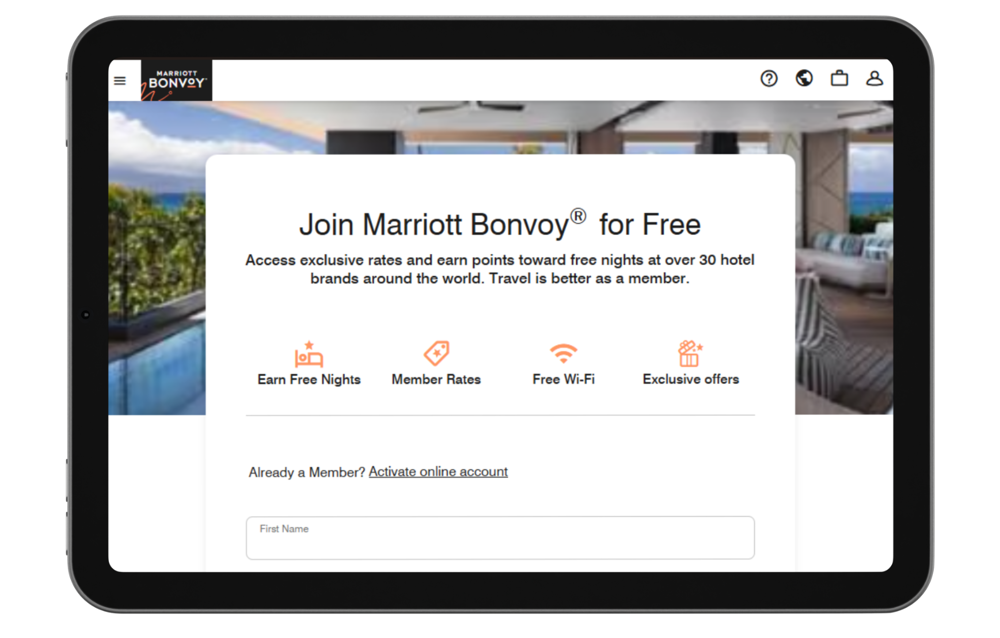
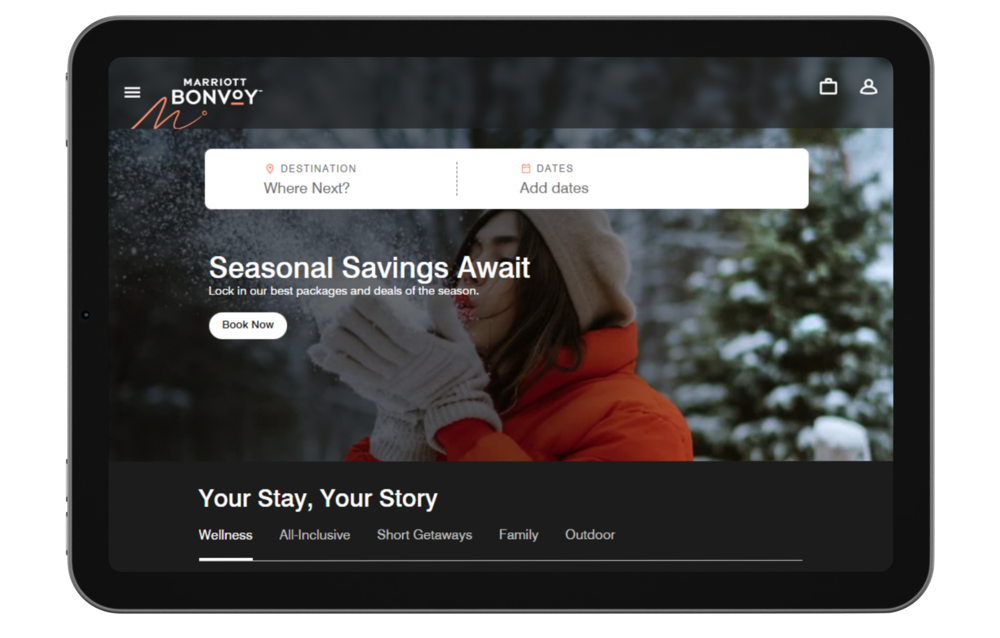
Step 2 of 13: Visit the Marriott Website
Go to the official Marriott website to start your booking.
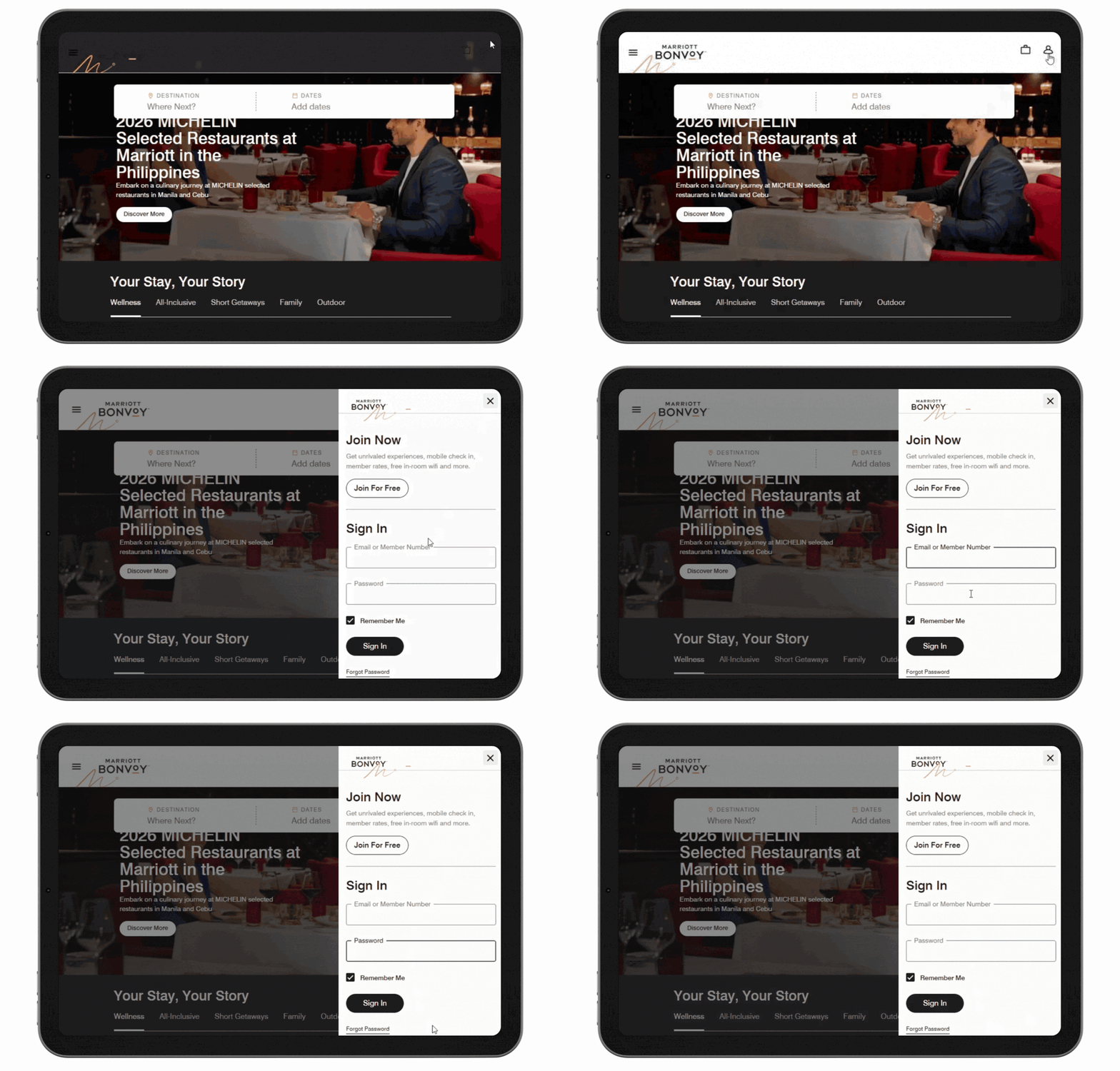
Step 3 of 13: Log In to Your Account
Log in using your Marriott Bonvoy membership details.
Step 4 of 13: Enter Your Hotel Details
Enter your destination, travel dates, and number of guests.
Select “Use Points/Certificates”, then click “Find Hotels.”
For more flexibility, choose “My dates are flexible” to see points rates across different dates.
Step 5 of 13: Choose a Hotel
Browse the available hotels and click “View Rates” on the property you prefer.
Step 6 of 13: Select Your Check-In Date
If you chose flexible dates, select your preferred check-in date from the available options.
Step 7 of 13: Select a Room and Rate
Choose the room type and points rate that best suits your stay.
Step 8 of 13: Review and Complete Your Booking
Double-check all booking details, enter any required payment information, and click “Book Now” to confirm.
Step 9 of 13: Booking Confirmed
Your hotel stay is now booked using Marriott Bonvoy points. You’ll receive a confirmation email.
Step 10 of 13: Booking for Someone Else
You can use your points to book a stay for someone else. If you do, notify Marriott Bonvoy and provide the guest’s name.
Note: You can make award bookings for others up to five times per calendar year.
Step 11 of 13: Online Award Bookings
All Marriott Bonvoy award bookings can be made online.
Step 12 of 13: Booking Window
Award bookings open up to 50 weeks in advance of your arrival date.
Step 13 of 13: No Availability? Contact Support
If you can’t see availability online—but similar dates show availability through another loyalty program—it’s worth contacting Marriott Bonvoy customer service. Availability may be temporarily restricted or delayed.
💡 Good to Know: Marriott Bonvoy Points Booking Tips
You can use your Marriott Bonvoy points to book hotel stays for yourself or for someone else. If you’re booking for another guest, simply notify Marriott Bonvoy and provide the guest’s name. Note that bookings for others are limited to five award stays per calendar year.
Most Marriott Bonvoy award stays can be booked directly online through the Marriott website or app. There’s no need to call customer service unless availability doesn’t appear online or you need additional assistance.
Marriott Bonvoy award bookings open up to 50 weeks in advance, so booking early gives you the best chance to secure popular hotels, peak travel dates, and premium room types.
If a hotel shows cash availability but no points availability, don’t give up. Availability can sometimes be temporarily restricted. Contacting Marriott Bonvoy customer service may reveal additional award options.
✨ Pro Tips: Get More Value from Your Marriott Bonvoy Points
🏨 Best value: Redeeming points for higher-end or peak-season properties
📅 Book early to access better availability and lower points rates
⭐ Take advantage of the 5th Night Free when booking with points
💳 Watch for additional charges like resort fees, which may still apply
🌍 Make Your Marriott Bonvoy Points Work Harder
With smart planning, flexible dates, and strategic redemptions, Marriott Bonvoy points can unlock great value—whether you’re planning a short stay or a luxury getaway. Book early, stay flexible, and let Pointrs guide you in making the most of every point.